
The Make Accessible action walks you through the steps required to make a PDF accessible. It prompts to address accessibility issues, such as a missing document description or title. It looks for common elements that need further action, such as scanned text, form fields, tables, and images. You can run this action on all PDFs except dynamic forms (XFA documents) or portfolios.
- Choose Tools > Action Wizard.
The Action Wizard toolset is displayed in the secondary toolbar.
Note:
A list of available actions is displayed under the Action List in the right-hand pane.
- From the Action List, click Make Accessible.
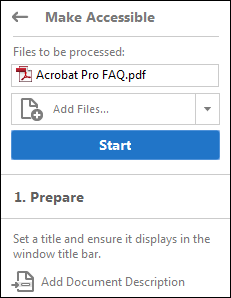
The right-hand pane changes to display each task included in the Make Accessible action, as well as the instructions to execute the action.
- Select the files that you want to apply the Make Accessible action to. By default, the action runs on the document that’s currently open. Select Add Files to select additional files or a folder to run the action on. Select Add Files to run the report on additional files or folders.
- Click Start.
- Follow the prompts to complete the Make Accessible action.